Connecting Claude, ChatGPT and other AI assistants
You can connect an AI assistant such as Claude or ChatGPT to Tayl, then ask it to do your Tayl work in a chat: find out who hasn't completed their training at your site, add a new starter to your team, assign a course, or draft a course from a presentation.
An assistant you connect acts as you. It can only see and do what you can in Tayl, so a manager's assistant reaches only the people and groups they manage. Every change it makes is recorded in Tayl's history as yours, made through the assistant.
Anyone who manages people, training or content can connect one: admins, managers, coordinators, content creators and content managers.
Before you start: turn on personal keys
Connecting an assistant, and creating personal API keys, are off until an organisation admin turns them on.
- As an admin, go to Settings > Public API.
- Under Personal API keys and AI assistants, click Turn on.
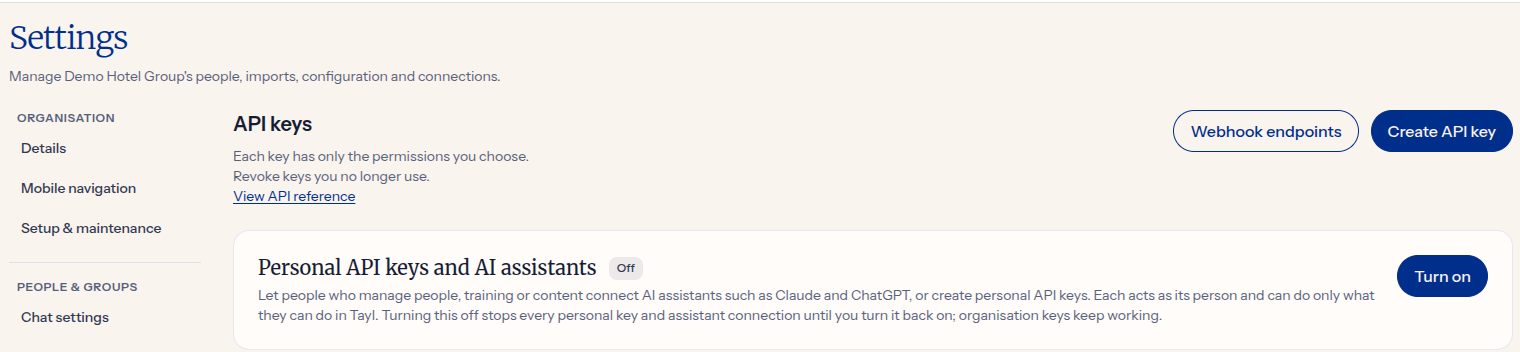
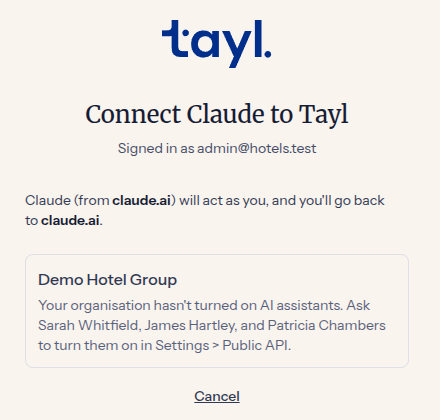
While they're off, nobody can connect an assistant or create a personal key, and any already made stop working until they're turned back on. Organisation API keys aren't affected. If someone tries to connect, we tell them which admins to ask:
Connect Claude or ChatGPT
You'll need the connector URL, which is shown under Connect an AI assistant in Settings > Public API, and on your own API keys and AI assistants page. It's your Tayl web address followed by /mcp, such as https://tayl.pro/mcp.
Claude
-
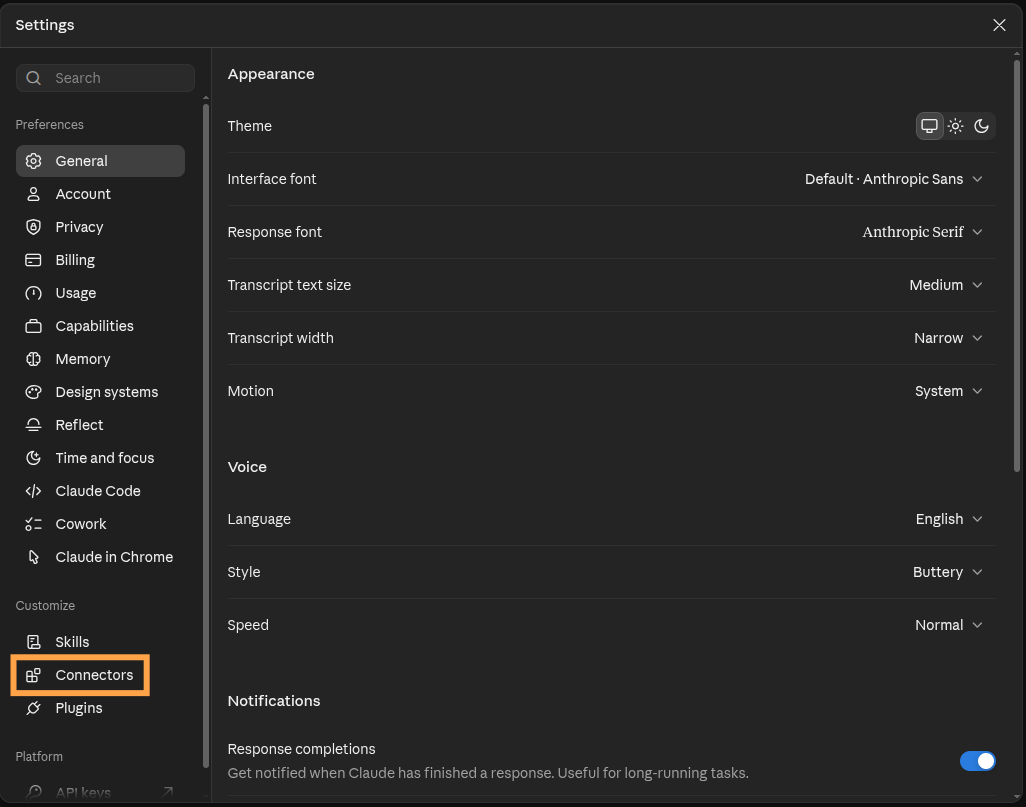
In Claude, open Settings, then Connectors under Customize.
-
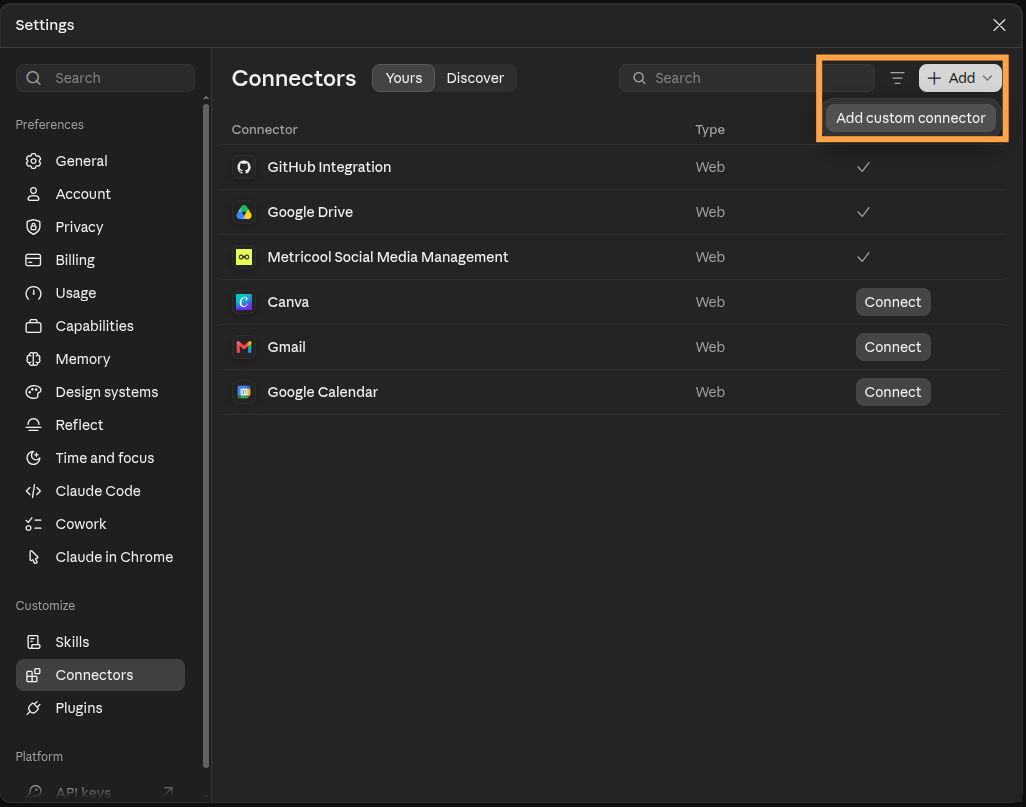
Click Add, then Add custom connector.
-
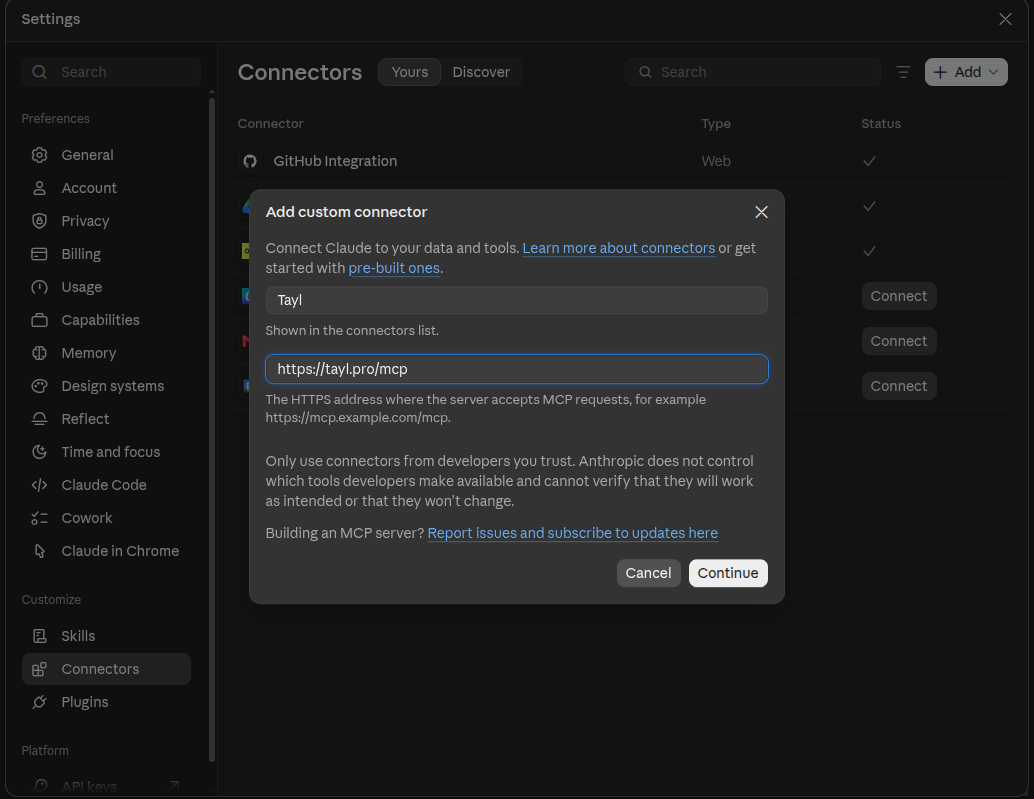
Name the connector, such as Tayl, enter the connector URL, and click Continue.
-
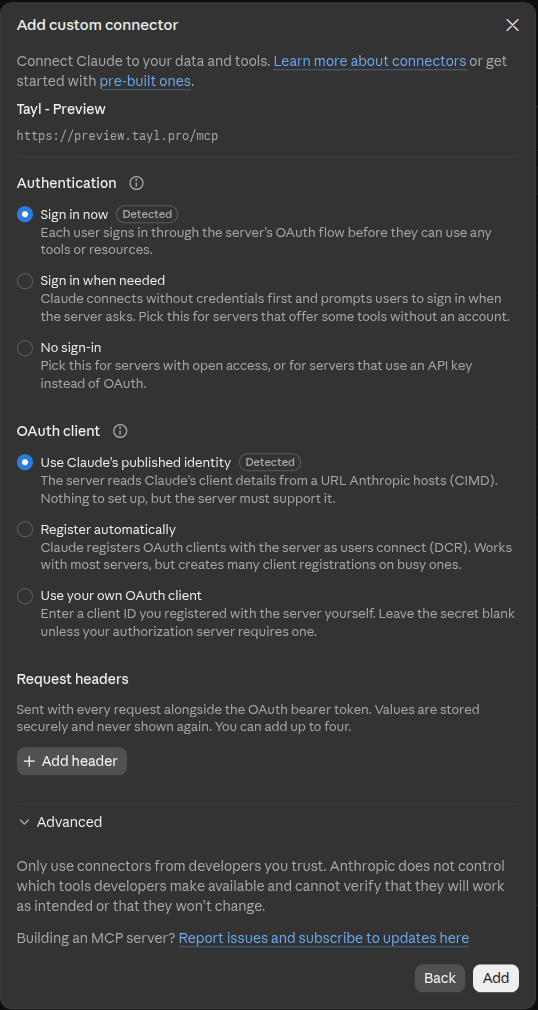
Keep the settings Claude detects, Sign in now and Use Claude's published identity, and click Add.
-
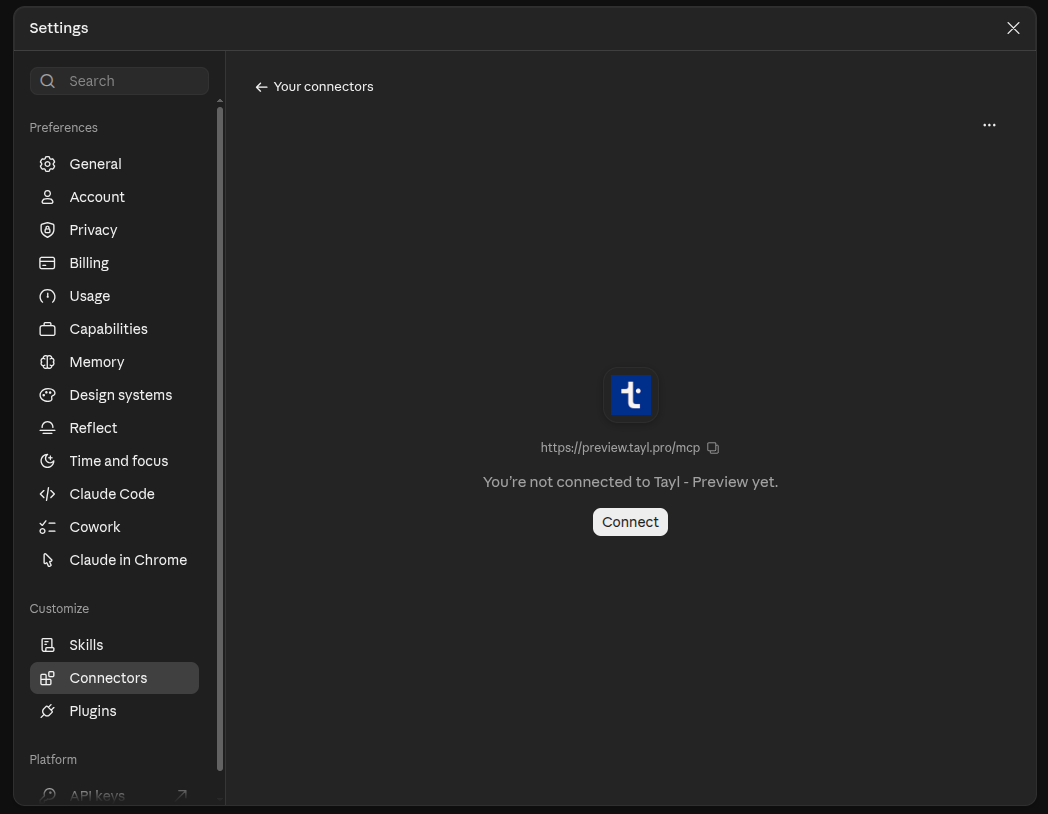
Click Connect, then approve the connection in Tayl.
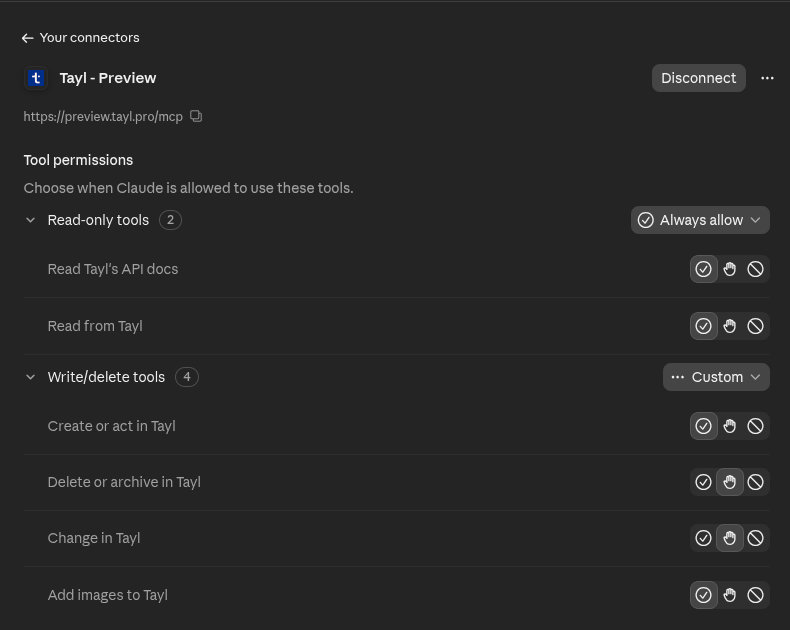
Back in Claude, open Tayl in Settings > Connectors. For each of Tayl's tools, choose whether Claude uses it without asking, asks you first, or never uses it.
ChatGPT
You need a Pro, Business, Enterprise or Edu plan. On Business, Enterprise and Edu, your ChatGPT workspace's admins choose who can add custom MCP servers. Ask them if you don't see Add custom MCP server.
- In ChatGPT, open Settings > Plugins, then click Browse directory.
-
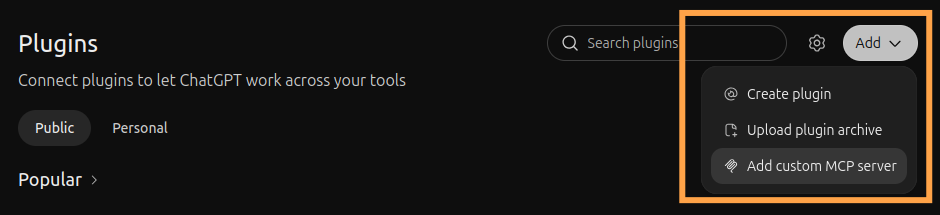
Click Add, then Add custom MCP server.
-
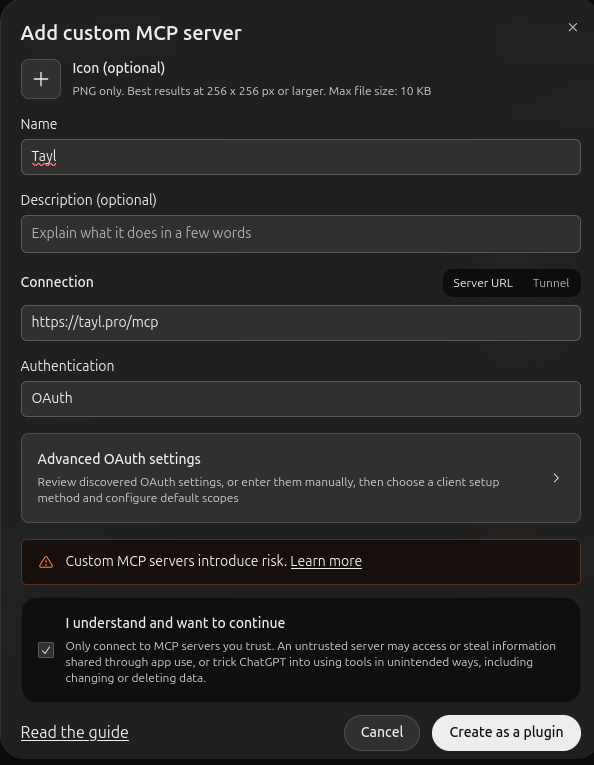
Name the plugin, such as Tayl, and enter the connector URL under Connection. Keep OAuth for Authentication, tick I understand and want to continue, and click Create as a plugin.
-
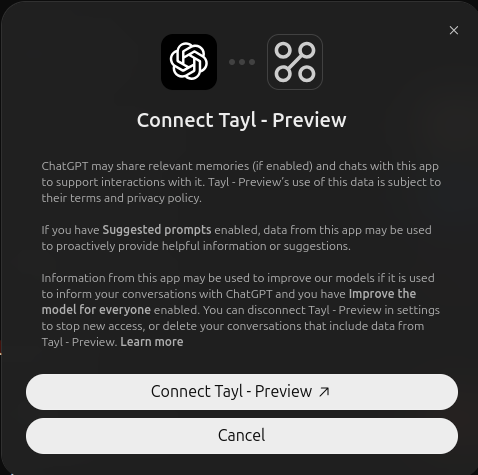
Click Connect, then approve the connection in Tayl.
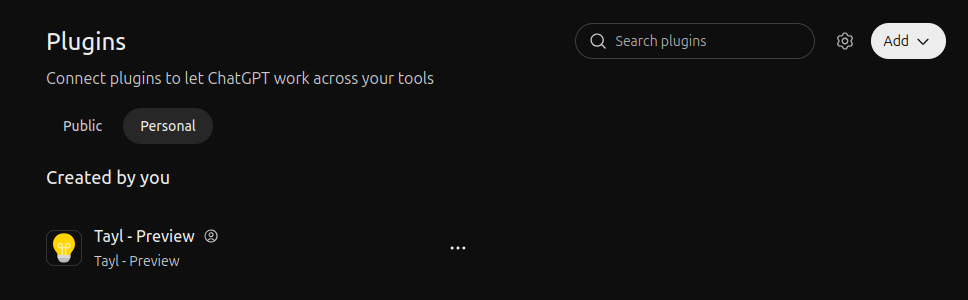
Back in ChatGPT, Tayl is listed under Personal in its plugins.
Approve the connection in Tayl
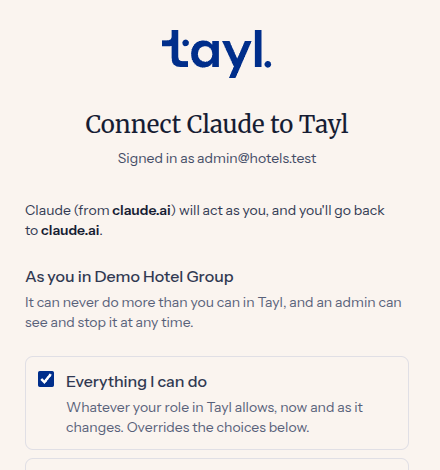
The assistant sends you to Tayl. Sign in if you need to, preferably with the six-digit code from the sign-in email, which keeps you in the same browser. Then:
- If you work in more than one organisation, choose the one the assistant should work in.
- Choose what it may do. We recommend ticking only what you'll ask it to do. Everything I can do follows your role, now and if it changes.
- Click Connect. We send you back to the assistant, ready to go.
Claude Code and Codex
Coding agents that sign in to MCP servers, such as Claude Code and Codex, use the same connector URL:
-
Claude Code: run
claude mcp add --transport http tayl https://tayl.pro/mcp, then type/mcpin Claude Code, choose tayl and sign in. -
Codex: run
codex mcp add tayl --url https://tayl.pro/mcp, thencodex mcp login tayl.
Your browser opens Tayl so you can approve the connection. Because the agent runs on your computer, we ask you to continue only if you started connecting it yourself.
Copilot Studio and other tools
Tools that take a URL and an API key but can't sign in, such as Microsoft Copilot Studio, use the connector URL with a personal API key:
- Click your profile picture, open Profile, then API keys and AI assistants.
- Click Create API key, name it after the tool, and choose what it may do.
- Copy the key, which we show only once, into the tool as its Bearer token.
Gemini Enterprise and Microsoft 365 Copilot agents can't connect yet.
Ask about training figures
An assistant can answer questions such as "how many people at each site have completed food safety?" with the figures you see in Tayl, in a call or two. It needs View reports and your plan's Advanced reporting. These summaries count people without naming them. To find out who, the assistant also needs View tasks.
Add images to courses
When an assistant drafts a course, it can add pictures to it: the images in your presentation or document, ones it makes or improves, and images online. How it sends them depends on the assistant:
- ChatGPT sends images you attach to the chat, and ones it makes or takes from your files.
- Claude sends images from code it runs, such as pictures it takes from your presentation. That code needs to reach Tayl, so allow it as below.
- Claude Code, Codex and other coding agents send images from your computer.
- Any assistant can add an image that's online by its link.
Images must be JPEG, PNG, GIF, WebP or AVIF files of up to 10 MB. Assistants can convert other formats first. If an image can't get through, add it in the course builder yourself.
If an online image download is interrupted, we refuse it rather than saving an incomplete image. Ask the assistant to try again, or upload the original file in the course builder.
Let Claude's code reach Tayl
Claude tells you when its code can't reach Tayl and walks you through this:
- In Claude, open Settings > Capabilities. On a Team or Enterprise plan, an owner does this in Organization settings > Capabilities instead.
- Make sure Allow network egress is on.
- Under Additional allowed domains, type your Tayl address, such as
tayl.pro, and click Add. - Leave Domain allowlist as Package managers only. There's no need for All domains, which lets Claude's code reach any website.
If Claude still can't reach Tayl, start a new chat, as the change may apply only to new ones.
Disconnect an assistant
To disconnect an assistant or revoke a personal key, open API keys and AI assistants from your profile and click Revoke. The assistant or key stops working straight away.
Admins see every key and connected assistant in Settings > Public API, including whose it is, and can revoke any of them.
When your access changes
An assistant's access follows yours. If your role changes, what it can do changes with you. If you lose access to the organisation, the assistant stops working. While you can't use the organisation in Tayl, such as while it's in maintenance, your assistants and keys wait too.
Changing or resetting your password signs you out everywhere else, disconnects your assistants, cancels pending connections and revokes your personal keys. That way, anyone who had your account can't keep using it. Proving your sign-in email for the first time also ends earlier connections. Connect your assistants again afterwards.
What assistants can't do
Assistants work through Tayl's Public API, which never acts as a learner. They can't complete training, sign documents, chat or moderate for anyone, and they can't download certificate PDFs or upload files other than images.